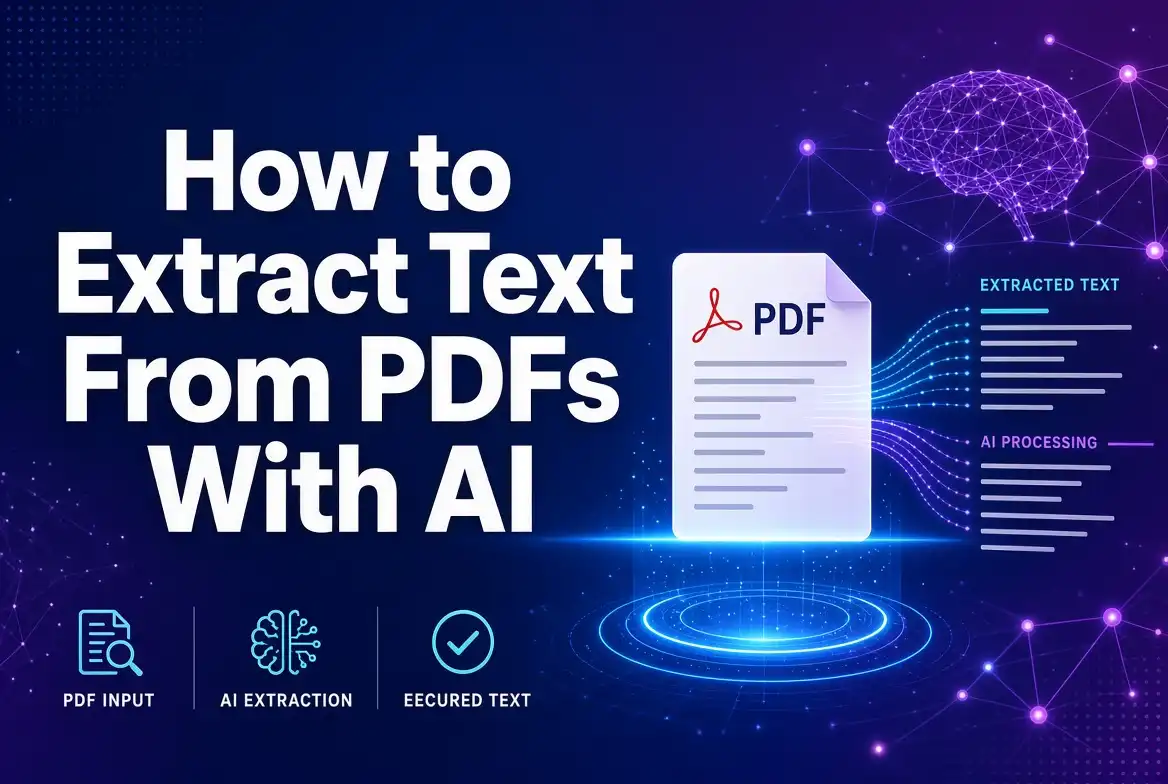
PDF files are one of the most common ways to share documents, reports, books, invoices, forms, and study materials. However, extracting useful text from a PDF can sometimes be difficult, especially when the document contains scanned pages or images instead of selectable text.
AI-powered PDF tools can make this process much easier. They can help identify text, process scanned documents, organize information, and turn large PDF files into searchable and usable content.
What Does Extracting Text From a PDF Mean?
Extracting text from a PDF means converting the written content inside a PDF into text that you can search, copy, edit, analyze, or reuse.
For example, you may receive a PDF containing a contract, lecture notes, research paper, invoice, or scanned document. Instead of manually typing the information, a PDF text extraction tool can identify the text automatically.
Traditional PDF extraction works particularly well when the document already contains digital text. AI becomes especially useful when the PDF contains scanned pages, photographs, tables, or complicated layouts.
Can AI Extract Text From a PDF?
Yes. AI-powered document processing can help extract text from many types of PDF files. Depending on the tool, the process may combine PDF parsing, optical character recognition (OCR), and AI-based document understanding.
This means you can potentially extract information from both normal digital PDFs and scanned documents.
How to Extract Text From a PDF With AI
Step 1: Choose Your PDF
Start with the PDF document you want to process. It could be a report, book, research paper, scanned document, receipt, invoice, or set of notes.
Step 2: Upload the PDF to an AI PDF Tool
Open an AI-powered PDF tool that supports document text extraction. Upload your PDF and allow the tool to process the document.
Step 3: Let AI Analyze the Document
The system can analyze the pages and identify text within the document. For scanned PDFs, OCR technology may be used to recognize characters from images.
Step 4: Extract or Copy the Text
Once processing is complete, you can usually copy, download, search, or further process the extracted text, depending on the tool you are using.
Step 5: Review the Results
Always check the extracted text. Errors can occur when the original PDF has poor image quality, unusual fonts, multiple columns, tables, or handwritten content.
What Is OCR and Why Is It Important?
OCR stands for Optical Character Recognition. It is a technology that recognizes characters appearing in an image and converts them into machine-readable text.
This is particularly important for scanned PDFs. A scanned document may look like a normal PDF to you, but its pages can actually be images rather than selectable text.
OCR can analyze those images and identify the characters contained within them. AI-powered OCR can also improve document understanding in more complicated layouts.
AI PDF Extraction vs Traditional PDF Extraction
There is an important difference between extracting existing digital text and recognizing text from images.
- Traditional extraction: Retrieves text already stored inside a PDF.
- OCR: Recognizes text from scanned images.
- AI document processing: Can help understand and organize extracted information.
For a simple text-based PDF, traditional extraction may be enough. For scanned documents, OCR is usually required. AI can become particularly useful when you need to understand or organize the information after extraction.
Why Use AI to Extract PDF Text?
Save Time
Manually typing information from dozens or hundreds of PDF pages can take a long time. Automated extraction can process the document much faster.
Work With Scanned Documents
AI-assisted OCR can help convert scanned pages into searchable text, making older or image-based documents easier to work with.
Search Large Documents
Once text has been extracted, you can search for specific words, names, dates, or phrases instead of manually checking every page.
Reuse Information
Extracted text can be copied into notes, documents, spreadsheets, databases, emails, or other applications.
Analyze Content
After extraction, AI can also help summarize, categorize, explain, or organize information from the document.
How to Extract Text From a Scanned PDF
Scanned PDFs require a slightly different approach because their pages may consist entirely of images.
- Upload the scanned PDF to an OCR or AI PDF tool.
- Allow the system to analyze the document pages.
- OCR identifies characters in each page.
- The recognized characters are converted into digital text.
- Review the extracted text for recognition errors.
- Copy or export the final text.
For best results, use a document with clear scans and sufficient resolution. Pages that are tilted, blurry, dark, or damaged may produce less accurate results.
Can AI Extract Tables From PDFs?
AI-powered document tools can also assist with extracting information from tables. This can be useful when working with financial reports, invoices, research documents, product lists, and other structured information.
However, table extraction can be more complicated than ordinary paragraph extraction. Columns, merged cells, headers, and unusual layouts can sometimes cause formatting problems.
How Accurate Is AI PDF Text Extraction?
Accuracy depends on several factors, including the quality of the original document, font type, page layout, image resolution, language, and whether the document contains handwriting.
A clean digital PDF can often produce highly usable text. A poor-quality scan may contain mistakes such as missing characters, incorrect numbers, or misidentified words.
For important documents, treat automated extraction as a starting point and verify the output against the original file.
Common Problems When Extracting PDF Text
Blurry Scans
Low-quality scans can make characters difficult for OCR systems to recognize.
Complex Layouts
Newspapers, magazines, brochures, and multi-column documents can be harder to process correctly.
Tables and Forms
Structured documents can sometimes lose their original formatting during extraction.
Handwritten Text
Handwriting is generally more difficult to recognize accurately than printed text.
Multiple Languages
Documents containing several languages or unusual characters may require a tool that supports those languages correctly.
How to Get Better PDF Extraction Results
- Use the highest-quality PDF available.
- Make sure scanned pages are clear and readable.
- Use OCR for image-based PDFs.
- Choose the correct document language when supported.
- Check extracted numbers and names carefully.
- Review tables against the original document.
- Proofread the extracted content before publishing or submitting it.
What Can You Do With Extracted PDF Text?
Once the text has been extracted, there are many ways to use it.
- Create notes from a document.
- Search for specific information.
- Copy content into another document.
- Translate text into another language.
- Summarize long documents.
- Analyze research papers.
- Organize information from reports.
- Extract important information from invoices and forms.
- Create study materials from educational PDFs.
AI Prompts for Working With Extracted PDF Text
After extracting text, AI can help you process the information further. For example, you can use prompts like these:
Summarize: Summarize the following PDF text and list the five most important points.
Organize: Organize this extracted text into clear headings and bullet points.
Study: Turn this PDF text into easy-to-review study notes.
Questions: Create 20 questions and answers based only on this extracted PDF text.
Explain: Explain this document in simple language for a beginner.
Is AI PDF Text Extraction Free?
Some PDF and AI tools offer free text extraction, while others may limit the number of pages, files, or daily operations available without payment.
If you only need to extract text from a small number of documents, a free tool may be sufficient. Users who regularly process large documents may need a service with higher limits or additional features.
Is It Safe to Upload PDFs to AI Tools?
Before uploading a document, check the privacy and security policies of the service you are using. This is especially important when working with confidential business documents, financial information, private records, or other sensitive material.
Avoid uploading confidential documents to services you do not trust, and understand how uploaded files are handled, stored, and deleted.
AI PDF Extraction for Students and Professionals
Students can use PDF extraction to turn scanned textbooks, lecture materials, research papers, and notes into searchable text.
Professionals can use it for reports, invoices, forms, contracts, manuals, business documents, and other digital paperwork.
The biggest advantage is reducing the amount of repetitive manual work required to access information stored inside PDFs.
Conclusion
Extracting text from PDFs with AI can make document processing much faster and easier. AI-powered tools can help work with both digital and scanned PDFs, while OCR makes it possible to recognize text from document images.
Whether you are a student, blogger, researcher, freelancer, or business professional, automated PDF text extraction can save time and make information easier to search, edit, and analyze.
For the best results, choose a clear PDF, use the appropriate OCR or AI tool, and always review important extracted information against the original document.
Make Your PDF Workflow Easier
Instead of manually copying text from every PDF page, use modern PDF tools to extract information faster. Once the text is available, you can edit, search, summarize, organize, and analyze it much more efficiently.


Comments (0)
Leave a Comment