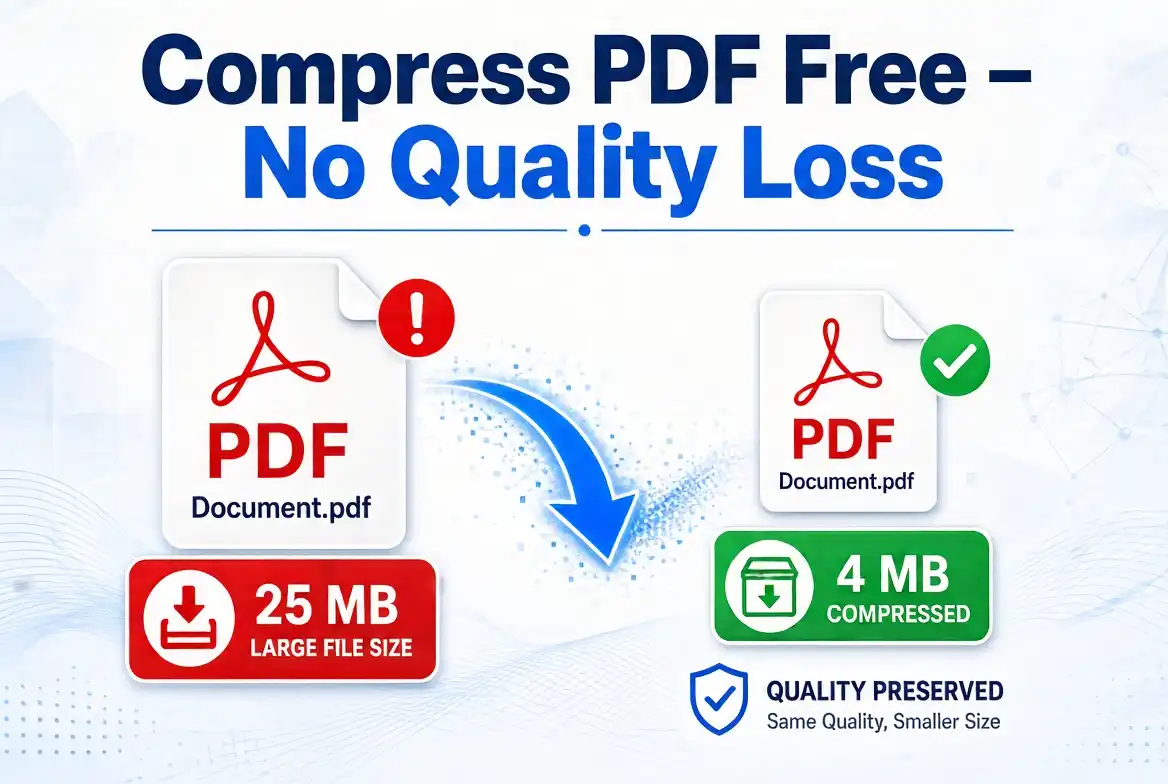
A PDF that's too large to email, upload, or attach to a form is one of the most common file problems there is. The good news: compressing a PDF properly takes less than a minute, costs nothing, and - if you use the right settings - doesn't make your document look worse. This guide walks through exactly how it works, what actually happens to your file when it's compressed, and how to avoid the most common mistakes.
Why PDFs Get So Large in the First Place
A PDF isn't one file type - it's a container that can hold text, fonts, vector graphics, and embedded raster images all at once. In practice, the file size problem almost always comes down to one of these:
- Scanned pages: Each page is really a full-resolution photo, often saved at 300 DPI or higher, which can easily be 1-3MB per page.
- Embedded fonts: Some PDF creators embed entire font families, even when only a few characters from that font are used.
- Uncompressed images: Photos pasted into a Word doc and exported to PDF often keep their original camera resolution, which is far more detail than a printed or screen-viewed page needs.
- Leftover metadata and layers: Editing history, hidden layers, and thumbnail previews can quietly add several MB without changing what you see on the page.
Step-by-Step: Compressing Your PDF Online
- Open a browser-based PDF compressor. You don't need to install anything - a tool that runs entirely in the browser is faster and doesn't require you to trust a desktop app with your files.
- Upload your PDF. Drag and drop the file, or select it from your device.
- Choose a compression level. Most tools offer a "balanced" or "recommended" setting by default - this is usually the right choice unless you have a specific reason to go more aggressive.
- Compress and download. The tool re-encodes embedded images and strips unnecessary metadata, then gives you a download link for the smaller file.
- Check the result. Open the compressed PDF and skim a few pages, especially any with photos or scanned text, to confirm the quality is still acceptable for your use case.
How Much Smaller Will My File Get?
| PDF Type | Typical Size Reduction |
|---|---|
| Scanned document (photos of pages) | 60-90% |
| Report with embedded photos | 40-70% |
| Text-only document (Word/Google Docs export) | 5-20% |
| Design file with vector graphics | 10-30% |
If your PDF is mostly text and already small, don't expect a dramatic drop - there's simply less to compress. The bigger the images inside it, the bigger the savings.
Compress PDF Without Losing Quality: What "Quality" Actually Means Here
Good compression tools don't touch your text at all - text in a PDF is stored as vector outlines or font references, not pixels, so it stays crisp regardless of compression level. What changes is the resolution and encoding of embedded images. A moderate compression setting typically brings images down to around 150 DPI, which is still sharp on a screen and perfectly fine for most printing, while cutting the file size dramatically. Only very aggressive settings (meant for email-size limits under 1MB) start to introduce visible softness in photos.
Common Mistakes to Avoid
- Compressing an already-compressed file repeatedly. Each pass re-encodes images, and repeated lossy compression compounds quality loss. Compress once, from the original if possible.
- Using desktop software that requires an account. For a one-off task, a free browser tool is faster and avoids unnecessary signups.
- Ignoring the compression level options. If your first result still looks fine but is too large, you may be able to push the setting further before quality visibly drops.
Frequently Asked Questions
Does compressing a PDF reduce its quality?
A well-built compressor mainly targets embedded images, fonts, and metadata rather than the text itself, so body text stays sharp. Image-heavy PDFs will show more visible change than text-only documents, which is why choosing a moderate compression level matters.
Is it safe to compress a PDF online?
It's safe as long as the tool processes your file over an encrypted connection and doesn't store it afterward. Avoid tools that require an account or ask for unrelated permissions.
How much can I reduce a PDF's file size?
It depends on the content. Scanned or image-heavy PDFs can often shrink by 50-90%, while text-only PDFs that are already small may only shrink slightly.
Why do I need to compress a PDF at all?
Most email providers cap attachments around 20-25MB, and many job portals, government forms, and application systems set even lower limits. Compressing keeps your file under those caps.
Comments (0)
Leave a Comment