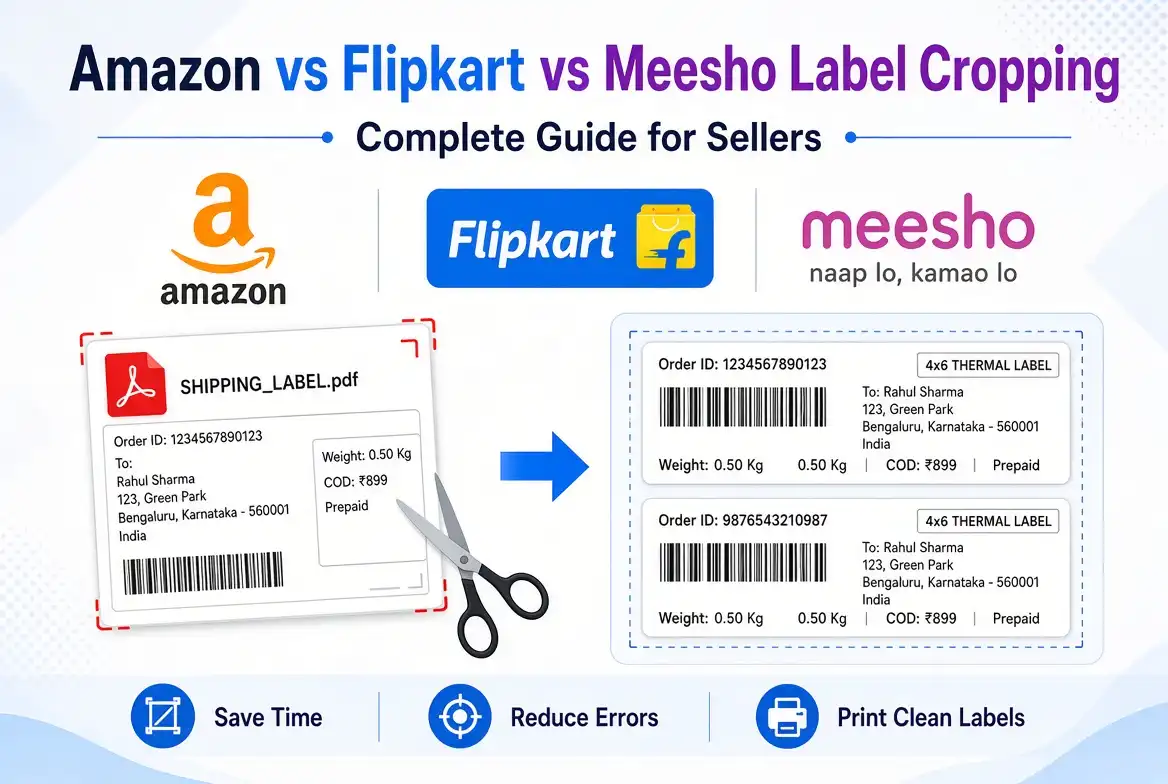
Learn how to crop and prepare Amazon, Flipkart, and Meesho shipping labels for clean A4 or thermal printing, avoid common mistakes, and save time with SmartPDFs e-commerce label tools.
For online sellers, printing shipping labels is one of those repetitive tasks that can quickly become frustrating. Marketplace-generated PDFs may contain extra white space, multiple labels on one page, invoices, instructions, or other sections that are not convenient for the printer or packaging workflow.
This is where label cropping becomes useful. Instead of manually opening every PDF in a desktop editor, a seller can crop the relevant label area and create a cleaner file ready for printing.
Amazon, Flipkart, and Meesho each have their own seller workflows, document layouts, and label formats. That means there is no single cropping method that works perfectly for every marketplace.
In this guide, we compare the three marketplaces, explain the most common cropping problems, and show how SmartPDFs can help sellers prepare labels more efficiently.
Why Do Sellers Need to Crop Shipping Labels?
Marketplace shipping documents are often designed to contain information that is useful somewhere in the fulfillment process but not necessarily needed on every printed piece of paper.
For a seller printing hundreds of shipments, unnecessary space can mean slower printing, wasted paper, awkward cutting, and more manual handling.
Save Printing Space
Cropping can remove blank areas and unrelated sections so the important label occupies the available printing area more efficiently.
Prepare Thermal Labels
A cropped label can be easier to prepare for supported thermal printer workflows when the source PDF contains multiple sections.
Reduce Manual Cutting
Cleaner individual label files can make packing workflows faster and more organized.
Improve Label Handling
Separating the useful label area can make documents easier to archive, print, and send to fulfillment staff.
Amazon vs Flipkart vs Meesho: What Makes the Labels Different?
The basic goal is similar on all three platforms: produce a shipping label that contains the information needed to identify and route the shipment. However, the actual layout and seller workflow can differ.
Amazon Label Cropping
Amazon seller documents can contain shipping information, barcodes, product or SKU information, and other fulfillment-related details depending on the specific workflow.
For Amazon FBA barcode labels, Amazon guidance states that barcodes should be printed in black ink on white, non-reflective labels with removable adhesive. Amazon also lists supported label formats for different printing workflows. For laser printing, its Seller Central guidance includes several A4 label layouts. :contentReference[oaicite:0]{index=0}
Amazon also specifically warns sellers to avoid printer scaling when printing labels; a setting of None or 100% may be required to prevent the PDF print area from being resized. :contentReference[oaicite:1]{index=1}
Flipkart Label Cropping
Flipkart sellers may receive label layouts that are not immediately convenient for the printer format they have available. The practical challenge is often separating the relevant shipping label section from unnecessary page content while keeping all shipping and barcode information intact.
Because marketplace document formats can change, sellers should use the current label generated inside their own Flipkart seller workflow rather than relying on an old screenshot or third-party size chart.
Meesho Label Cropping
Meesho sellers can also encounter shipping documents that need to be cropped before printing, especially when the objective is to isolate the actual shipping label from the rest of a generated page.
The safest workflow is to keep every barcode, shipment identifier, address, and marketplace-required section visible after cropping, then verify the result before printing the entire batch.
Crop Amazon, Flipkart & Meesho Labels Online
SmartPDFs provides dedicated e-commerce tools for marketplace label workflows, including an Amazon Label Cropper, Flipkart Label Cropper, and Meesho Shipping Label Cropper. :contentReference[oaicite:2]{index=2}
Explore SmartPDFs E-Commerce ToolsHow to Crop an Amazon Shipping Label
Download Your Amazon Label
Generate and download the current shipping or product label from your Amazon seller workflow.
Before editing it, keep the original PDF as a backup. Never overwrite the source document until the cropped version has been checked.
Open the Amazon Label Cropper
Open the SmartPDFs Amazon Label Cropper from the E-Commerce Tools category. The tool is intended to help sellers remove unwanted portions of Amazon labels and prepare cleaner files for printing or order processing. :contentReference[oaicite:3]{index=3}
Select the Useful Label Area
Select the area that contains the information you actually need. Be especially careful not to cut through barcodes, tracking numbers, shipment addresses, or other required identifiers.
Check the Crop Before Printing
Open the cropped PDF and verify that the barcode is complete and readable. Also confirm that the destination address and shipment information have not been clipped.
Amazon specifically recommends checking barcode readability and avoiding printer scaling that changes the physical output size. :contentReference[oaicite:4]{index=4}
How to Crop Flipkart Shipping Labels
Download the Current Flipkart Label
Start with the PDF generated from your current Flipkart seller workflow. Keep the original file unchanged so you can return to it if needed.
Open the Flipkart Label Cropper
SmartPDFs offers a dedicated Flipkart Label Cropper designed to crop and split Flipkart shipping labels for thermal and A4 printing. The category page states that the tool can process four labels at once. :contentReference[oaicite:5]{index=5}
Crop the Required Label Sections
Remove unnecessary whitespace or unrelated sections while keeping the complete shipping label visible.
When several labels are placed on one page, review each one individually. A single incorrect crop can result in a damaged or incomplete label.
Prepare the Final File for Your Printer
Save the cropped labels and test one copy first. Make sure the barcode scans correctly and that the physical size matches your printer setup.
How to Crop Meesho Shipping Labels
Get the Meesho Shipping Label
Download the current Meesho shipping label generated for the relevant order. Always use the latest seller-generated file rather than an old label template.
Open the Meesho Shipping Label Cropper
The SmartPDFs E-Commerce Tools category includes a dedicated Meesho Shipping Label Cropper for selecting the required label area and downloading the cropped result. :contentReference[oaicite:6]{index=6}
Select the Full Label
Select enough of the page to include the shipping address, barcode, tracking information, and other elements required by the current label format.
Download and Test the Cropped Label
Open the resulting PDF and zoom in on the barcode. Then print a test copy before processing a large order batch.
Amazon vs Flipkart vs Meesho Label Cropping Comparison
| Marketplace | Typical Cropping Need | Best Use Case | SmartPDFs Tool |
|---|---|---|---|
| Amazon | Remove unwanted areas and isolate labels | A4, product/barcode and shipping workflows | Amazon Label Cropper |
| Flipkart | Crop or split multiple labels | Thermal and A4 printing | Flipkart Label Cropper |
| Meesho | Select required shipping-label area | Clean individual shipping labels | Meesho Shipping Label Cropper |
SmartPDFs currently lists all three dedicated tools in its E-Commerce Tools category. :contentReference[oaicite:7]{index=7}
A4 Printing vs Thermal Printing
One of the biggest reasons sellers crop labels is the difference between ordinary A4 printing and thermal label printing.
A4 Printing
A4 printing is useful when your shipping workflow generates labels on a standard office printer. The challenge is that a single A4 page can contain multiple labels or extra content.
Cropping allows you to isolate the label area when you need a cleaner individual file.
Thermal Printing
Thermal printers are commonly used for shipping labels because they are fast and convenient for high-volume fulfillment.
However, the label dimensions must match the printer and media you are using. A cropped PDF does not automatically guarantee that your printer will produce the correct physical size.
Cropping changes the visible page area, but printer settings still matter. Always verify paper size, scaling, orientation, and print area before printing a full batch.
How to Avoid Cutting Off a Barcode
Barcodes are usually the most sensitive part of a shipping label. Even a small crop error can remove part of the barcode or surrounding information.
- Leave a small amount of space around the barcode.
- Do not crop through barcode bars.
- Keep the complete tracking number visible.
- Check that the barcode has enough surrounding whitespace.
- Print one test label before processing hundreds of orders.
- Scan the printed barcode when possible.
Amazon specifically recommends periodically testing barcodes by scanning them, which is a useful practice for any marketplace label workflow. :contentReference[oaicite:8]{index=8}
Common Label Cropping Mistakes Sellers Make
Over-Cropping
Removing too much information can make the label incomplete or unreadable.
Ignoring Scaling
A perfectly cropped PDF can still print at the wrong size if printer scaling is enabled.
Using Old Templates
Marketplace layouts can change, so old dimensions should not be treated as permanent rules.
Skipping Test Prints
Printing an entire order batch before testing one label can create unnecessary paper and shipping delays.
Should You Crop Shipping Labels Manually?
You can manually crop a PDF using a desktop PDF editor, but this approach can become inefficient when you process many orders every day.
A dedicated label cropper is more convenient when your objective is simply to remove unwanted space and create a clean label rather than redesign the entire PDF.
For sellers, the biggest advantage is consistency. Using the same workflow for Amazon, Flipkart, and Meesho can reduce repetitive manual editing.
One Place for E-Commerce Label Tools
SmartPDFs brings marketplace-focused tools together in one E-Commerce category, including Amazon label cropping, Flipkart label cropping, and Meesho shipping label cropping. :contentReference[oaicite:9]{index=9}
Open SmartPDFs E-Commerce ToolsBest Workflow for High-Volume Sellers
If you process many marketplace orders every day, the goal should be to create a repeatable workflow instead of manually editing every shipment from scratch.
- Download the latest marketplace-generated label.
- Keep the original PDF as a backup.
- Open the appropriate SmartPDFs label cropper.
- Crop only the unnecessary area.
- Check the barcode and shipment details.
- Print one test copy.
- Confirm the printer scaling and paper size.
- Process the remaining batch.
How to Choose the Right Label Cropping Tool
A good label cropping tool should make the task faster without making the seller worry about complicated PDF editing.
- Simple interface: You should be able to select the label area quickly.
- Accurate cropping: The output should closely match the selected area.
- PDF support: Marketplace labels are commonly distributed as PDFs.
- Batch capability: Useful for sellers processing many orders.
- Printer flexibility: The output should work with your existing A4 or thermal workflow.
- Marketplace-specific tools: Dedicated cropper tools can be more convenient than a generic PDF editor.
What About Amazon Barcode Size and Printing?
Amazon's Seller Central guidance provides specific barcode and label size requirements for certain workflows. For example, Amazon states that FNSKU barcodes must be printed in black ink on white, non-reflective labels with removable adhesive, and gives supported label dimensions and sheet layouts. :contentReference[oaicite:10]{index=10}
This is why sellers should be careful when cropping Amazon files. The goal should not simply be to make the PDF smaller. The goal is to create a clean print area while preserving the required barcode and identifying information.
Does Cropping Change the Label Size?
Cropping changes the PDF's visible page boundary, but it does not mean the printed result will automatically match a particular physical label size.
Your print dialog still controls how the document is rendered onto paper. Settings such as actual size, fit to page, custom scale, paper size, orientation, and printer margins can affect the final result.
For Amazon labels, Amazon explicitly advises setting printer scaling to None or 100% when appropriate to avoid changing the PDF print area. :contentReference[oaicite:11]{index=11}
Frequently Asked Questions
What is label cropping for e-commerce sellers?
Label cropping means removing unnecessary parts of a marketplace-generated PDF so that the required shipping label occupies a cleaner, more useful print area.
Can I crop Amazon shipping labels online?
Yes. SmartPDFs provides an Amazon Label Cropper within its E-Commerce Tools category for cropping Amazon shipping and product labels online. :contentReference[oaicite:12]{index=12}
Can I crop Flipkart labels for thermal printing?
SmartPDFs lists a dedicated Flipkart Label Cropper designed for cropping and splitting Flipkart shipping labels for thermal and A4 printing. :contentReference[oaicite:13]{index=13}
Can I crop Meesho shipping labels online?
Yes. SmartPDFs provides a Meesho Shipping Label Cropper that lets sellers select the required area and download a cropped shipping label. :contentReference[oaicite:14]{index=14}
Will cropping affect my barcode?
It can if you crop too aggressively. Always keep the complete barcode, tracking number, and required surrounding space visible, then test the printed label before processing a large batch.
Should I use A4 or thermal printing?
It depends on your fulfillment setup. A4 printing can be practical for standard office printers, while thermal printing can be convenient for high-volume shipping. Use the media size supported by your printer and marketplace workflow.
Does cropping a PDF guarantee the correct physical label size?
No. Cropping changes the page area, while printer settings determine how that page is physically printed. Always verify scaling, paper size, and orientation before printing.
Can I crop multiple labels at once?
Some tools support multiple labels per workflow. SmartPDFs specifically states that its Flipkart Label Cropper can process four labels at once. :contentReference[oaicite:15]{index=15}
What should I check before shipping a cropped label?
Confirm the recipient address, tracking information, barcode, SKU or shipment identifiers, and any marketplace-required details. Then print and scan a test label when possible.
Make Marketplace Label Printing Easier with SmartPDFs
Amazon, Flipkart, and Meesho sellers do not always receive shipping documents in the exact layout that works best for their printer. Cropping can make those files easier to print and manage, provided that the required information remains untouched.
SmartPDFs provides dedicated tools for Amazon, Flipkart, and Meesho label cropping, bringing common e-commerce PDF tasks into one place. :contentReference[oaicite:16]{index=16}
For the best results, keep your original marketplace PDF, crop only what is unnecessary, verify every barcode, and test your printer settings before running a large batch.
Explore E-Commerce ToolsFinal Thoughts
For e-commerce sellers, label preparation is a small task that can have a major impact on fulfillment speed. A clean, correctly cropped label is easier to print, organize, cut, and attach to a package.
The right workflow depends on the marketplace. Amazon requires particular attention to barcode and print-format requirements, while Flipkart and Meesho can also benefit from separating the useful shipping-label area from unnecessary PDF content.
Rather than manually editing every document, sellers can use marketplace- specific cropping tools to simplify repetitive work. SmartPDFs currently offers dedicated Amazon, Flipkart, and Meesho label cropping tools through its E-Commerce Tools category. :contentReference[oaicite:17]{index=17}
The most important rule is simple: crop for convenience, never at the expense of required shipping information or barcode readability. Always test one printed label before applying the same workflow to a large order batch.


Comments (0)
Leave a Comment